

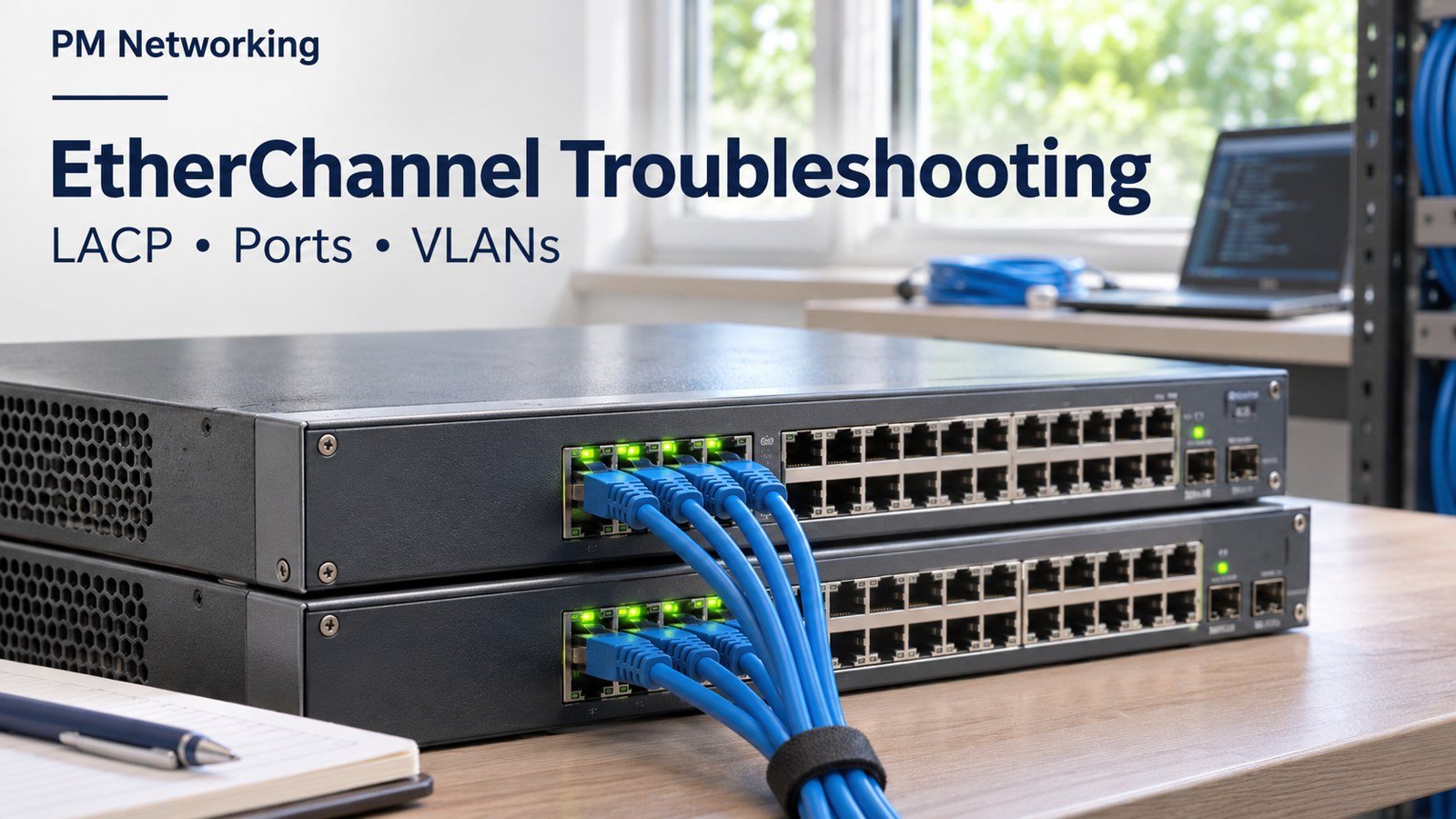

EtherChannel troubleshooting starts with three questions: are the physical links healthy, are both switches negotiating LACP, and do the member ports have compatible settings? A suspended member does not automatically mean a bad cable. A port-channel that is up does not prove every VLAN can cross it either.
This guide is for CCNA learners and engineers practising Layer 2 fault isolation. The example is illustrative and has not been executed in a router or switch emulator. Check command support for your own platform and software release before applying it.
What does a suspended LACP port mean?
EtherChannel combines physical links into a logical interface. LACP negotiates participation in that bundle. A suspended member is not forwarding as a normal bundled link. Read the switch’s status legend and logs to establish why; operational behaviour can vary with platform and standalone settings.
Cisco documents compatible LACP mode pairs and member consistency requirements in its IOS XE EtherChannel guide. Active can negotiate with active or passive. Two passive ends do not initiate negotiation. Static on mode does not negotiate LACP.
Start with a small evidence checklist
- Record the affected port-channel, physical member ports and the remote switch.
- Establish whether the whole bundle is down, one member is missing, or only one VLAN fails.
- Collect status and logs on both ends before changing configuration.
- Write down what success means: expected members bundled and intended traffic working.
show etherchannel summary
show interfaces status
show lacp neighbor
show logging
Read the flag legend printed by your switch. On many IOS platforms, P identifies a bundled member, I an individual port and lowercase s a suspended port. Do not confuse the uppercase Layer 2 flag on a port-channel with a suspended member. Save the complete output rather than reporting only one letter.
1. Verify cabling and physical health
Confirm each local member reaches the intended peer and port. Compare interface descriptions with the actual cabling record. Check operational speed, duplex, errors and link transitions. An interface that is administratively enabled may still be physically down.
show interfaces GigabitEthernet1/0/1
show interfaces GigabitEthernet1/0/2
show interfaces counters errors
Use the supported equivalent if a command differs on your device. If only one link has increasing errors, investigate that link before rebuilding the bundle. A useful troubleshooting note identifies the port, observation time and counter change; a single old error total is weaker evidence.
2. Compare negotiation on both ends
Inspect the member configuration on each switch. Confirm the intended protocol and a compatible mode pair. Check that LACP sees the expected partner rather than assuming a live Ethernet link proves negotiation.
show running-config interface GigabitEthernet1/0/1
show running-config interface GigabitEthernet1/0/2
show lacp neighbor
show etherchannel detail
If both ends are passive, configure an active end as part of the intended design. Do not switch to static on mode merely to hide a negotiation failure. Local channel-group numbers identify local bundles; matching numbers on two switches are a naming convention, not the proof that the ports have joined correctly.
3. Check Layer 2 consistency
Compare access or trunk mode, native VLAN, allowed VLANs and member settings. All links intended for the same bundle should follow the same design. Also compare the logical port-channel with its physical members. A configuration pasted onto one member can leave a mismatch that is easy to overlook.
Use our VLAN explanation if the distinction between access and trunk traffic is unclear. For platform-specific compatibility rules, consult Cisco’s Catalyst EtherChannel configuration guidance.
Illustrative lab: two switches, two links
Connect SW1 Gi1/0/1 to SW2 Gi1/0/1, and SW1 Gi1/0/2 to SW2 Gi1/0/2. Use Port-channel1 as a Layer 2 trunk carrying VLANs 10 and 20. This example assumes compatible lab switches and existing VLANs; it is not a complete production configuration.
! Apply the intended lab design on BOTH switches
interface range GigabitEthernet1/0/1 - 2
 switchport mode trunk
 switchport trunk allowed vlan 10,20
 channel-group 1 mode active
 no shutdown
!
interface Port-channel1
 switchport mode trunk
 switchport trunk allowed vlan 10,20
 no shutdown
Keep native VLAN settings consistent with your lab design on both ends. Avoid adding encapsulation commands that your switch does not support. Before using an interface range, verify that it contains only the intended ports.
Practice one fault at a time
In an isolated lab, use passive mode on both ends and predict the result before inspecting the status. Then restore active mode on one end and compare neighbour and bundle output. Record the evidence that explains the change. This is a suggested exercise, not a claim that the displayed configuration has been lab-tested.
Next, examine a saved configuration with an inconsistent member VLAN list. Identify the mismatch on paper before making a correction. Separating diagnosis from typing builds a better habit than repeatedly removing and re-adding the channel group.
4. If the bundle is up but traffic fails
Move beyond negotiation. Check the VLAN’s complete path: source access port, port-channel trunk, spanning-tree forwarding and destination access port. Test a host pair in each intended VLAN. A successful test in VLAN 10 does not prove VLAN 20 works.
show interfaces trunk
show spanning-tree vlan 10
show spanning-tree vlan 20
show mac address-table dynamic
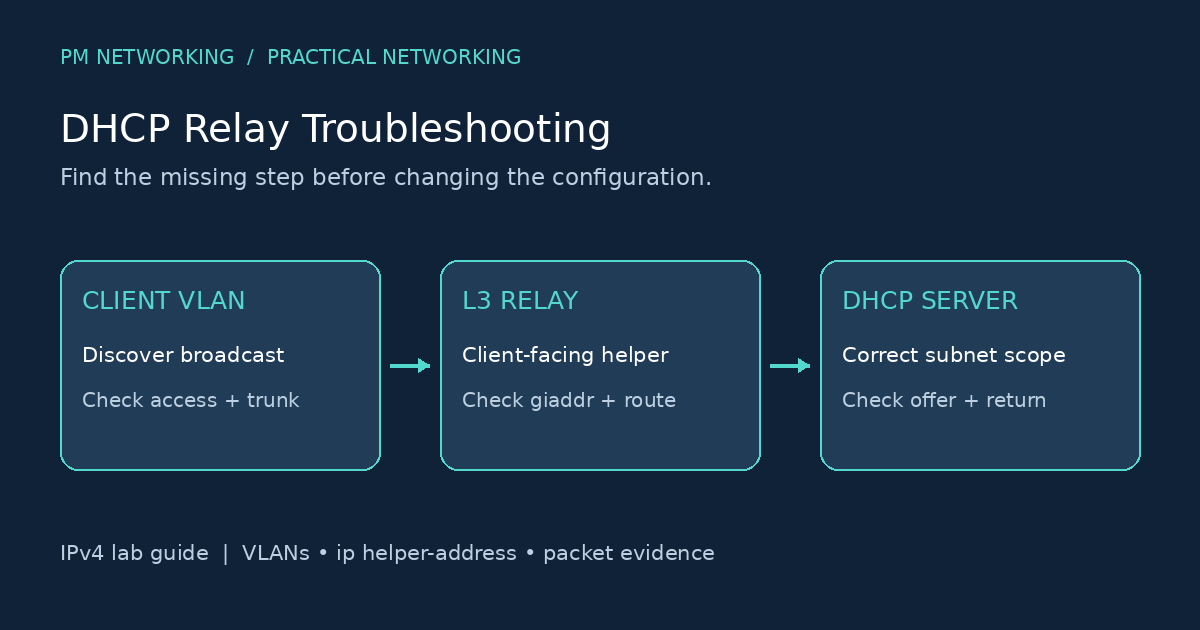
Learned MAC addresses can help locate where traffic reaches the switch, but interpret them with the topology and timestamps. If addressing fails across a routed boundary, follow our DHCP relay troubleshooting guide after confirming the Layer 2 path.
5. Verify recovery and redundancy
- Confirm the expected members are bundled on both switches.
- Confirm the intended LACP peer and stable interface states.
- Test connectivity in every required VLAN.
- In an isolated lab or approved maintenance window, remove one link and observe whether the expected service survives.
- Restore that link and confirm it rejoins, then retain before-and-after evidence.
Consider configured minimum-link requirements before interpreting a one-link test. Avoid expecting one application flow to use the sum of every member’s bandwidth: traffic distribution depends on the platform’s load-balancing method and the flows involved.
Frequently asked questions
Can passive and passive form LACP?
No. Neither end initiates negotiation. Use a compatible mode pair with at least one active end.
Does a suspended member prove the cable is faulty?
No. Check physical health, peer negotiation, member consistency and logs to distinguish causes.
Should I force channel-group mode on?
Only when static aggregation is deliberately required and correctly configured at both ends. It is not a general repair for an LACP fault.
Why does one VLAN fail when Port-channel1 is up?
Bundle state and end-to-end VLAN forwarding are separate checks. Inspect allowed VLANs, access ports and spanning tree along the full path.
What should I record after the fix?
Keep the original symptom, root cause, exact change, bundle and neighbour status, traffic tests and any redundancy test result. For broader practice, use our network troubleshooting lab checklist.

PM Networking is an emerging leader in the ed-tech space, founded by Praphul Mishra in 2020 with a vision to democratize tech education. The journey of PM Networking began as a YouTube channel with the sole purpose of sharing valuable knowledge in the fields of Networking, Cyber Security, and Cloud Computing. What started as a humble effort to educate has rapidly evolved into a comprehensive online learning platform that caters to the growing demand for specialized IT skills.PM Networking stands out in the crowded ed-tech industry by providing affordable, world-class training tailored to the needs of aspiring IT professionals. The platform is dedicated to equipping learners with the skills and knowledge required to excel in the highly competitive tech industry. Whether it’s Networking fundamentals, advanced Cyber Security protocols, or mastering the complexities of Cloud Computing, PM Networking offers a range of courses designed to cater to different levels of expertise.
0 Comments