


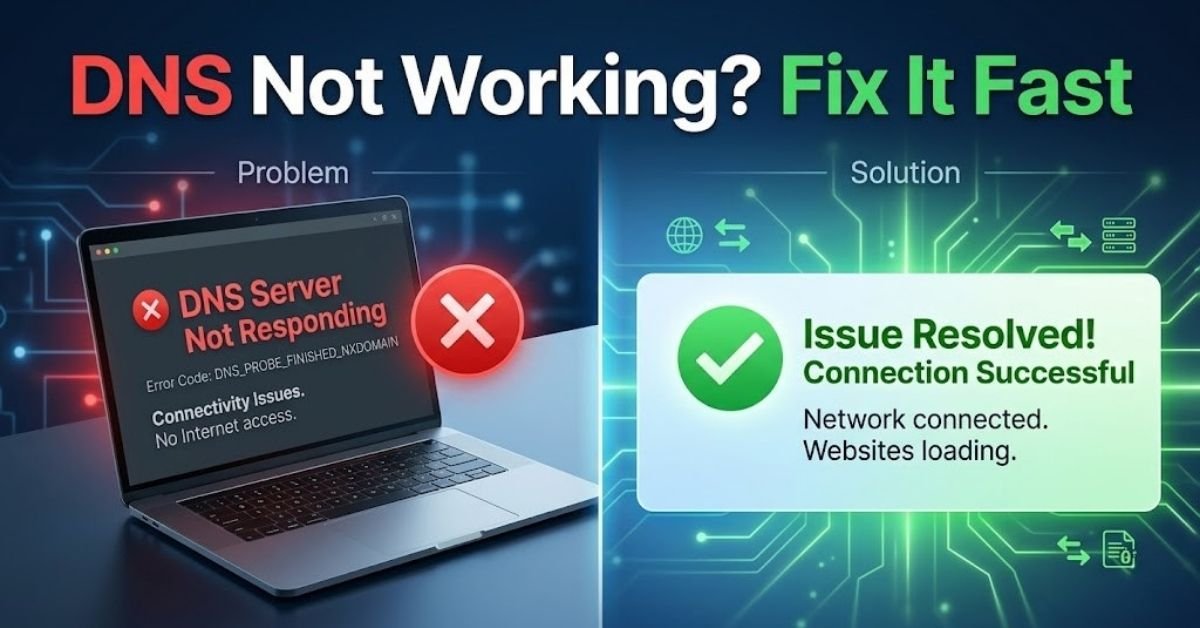
If you’ve ever seen the error dns server not responding fix, it can feel confusing at first but if you understand, it’s actually a very common issue. You might notice that your internet is connected, but websites just won’t load, which can be very frustrating, especially when everything else seems fine.
This problem happens a lot on dns server not responding windows 11, and many users think that it’s their internet that’s at fault, but that’s not always the case. The good news is that there are simple dns troubleshooting steps you can follow to fix it quickly
What Does DNS Server Not Responding Mean?
To understand this error, you first need to know what DNS actually does. DNS (Domain Name System) works like a translator, because it converts website names into numbers (IP addresses) that computers can understand.
For example, when you type a website name into your browser, DNS helps turn that name into an IP address. But if DNS is not working, your system gets stuck, and the site won’t open even though your internet seems active.
This is why learning how to fix dns error Windows 11 or how to change dns server windows 11 can be very helpful, since it allows you to solve the problem quickly and continue browsing without interruptions.
To understand this better, you can read our detailed guide on What is DNS? How It Works, where everything is explained step by step.
Why This DNS Error Happens in the First Place
The dns server not responding fix issue can happen for several reasons, and understanding them makes it easier to solve the problem. Although it may look serious, most causes are actually simple.
- One common reason is wrong DNS settings, because if your system is not set up correctly, it won’t be able to connect properly. This is why many people look for ways to change dns server windows 11, since updating the settings often solves the issue.
- Sometimes the problem comes from your internet provider (ISP), since their DNS servers may be down or slow, and thus your connection struggles to load websites.
- Router problems can also be a cause, because routers handle your network connection, and if they glitch or overheat, DNS errors can appear.
- Outdated network drivers are another reason, especially when dealing with dns server not responding windows 11, because old drivers may not work smoothly with the latest system updates.
- In some cases, your firewall or antivirus might block DNS requests, although they are meant to protect your system. This can interfere with normal browsing.
- Lastly, a corrupted DNS cache can create issues, since your computer stores old or broken records, which then prevents websites from loading properly. That is why following proper dns troubleshooting steps is important to find the exact cause and apply the right dns not working solution.
Quick Things to Try Before Fixing It
Before you go into detailed fix dns error windows 11 methods, you should try these quick and simple steps because they often solve the issue right away:
- Restart your router, as this will reset your internet connection.
- Restart your PC, because it clears all temporary glitches.
- Use a different internet browser, although the issue may not always be browser-related
- Check the same website on a different device to see if the problem is with your system or the network.
Easy Ways to Fix the DNS Problem Step by Step
If the quick checks did not work, you can try these DNS troubleshooting steps one by one because they are easy to do and generally help fix a DNS issue.
Fix 1: Restart Your Router and PC
This seems like a very basic way to fix an error, but in many cases it works. To begin, turn off your router and wait for about 30 seconds before turning it back on. After that, restart your computer as well. The reason for doing this is to ‘refresh’ your Internet connection, and it also helps eliminate small temporary issues with your Internet connection. It is often the easiest dns not working solution.
Fix 2: Clear Your DNS Cache
Sometimes your system stores old or incorrect DNS data, and this can cause problems while loading websites. In this case, clearing the DNS cache can help.
You need to open Command Prompt and type the command ipconfig /flushdns, then press Enter. This process removes outdated records as well as allows your system to get fresh data. So this is a very effective method to fix dns error windows 11.
Fix 3: Change Your DNS Server
If your current DNS server is slow or not responding, you can switch to a better one. This is one of the most effective methods for a dns server not responding fix.
You can use Google DNS with the addresses 8.8.8.8 and 8.8.4.4, or Cloudflare DNS with the address 1.1.1.
To change the DNS server in Windows 11, you need to open Settings and go to Network and Internet. Then open advanced network settings and select your current network. After that, open Properties and find the IP settings option. You should click Edit, select Manual, and turn on IPv4. Then enter the DNS addresses and save the changes. This helps because it connects your system to a faster and more reliable DNS service.
Fix 4: Turn Off IPv6
In some cases, IPv6 can create conflicts, although it is not always necessary for most users.
You can open your network settings, go to the properties of your connection, and uncheck Internet Protocol Version 6. After that, click OK. This simple step can help solve dns server not responding issues in Windows 11.
Fix 5: Update Network Drivers
Outdated drivers can also cause network problems, so it is important to keep them updated.
You should open Device Manager and expand the Network adapters section. Then right-click on your network adapter and select Update driver. After that, choose the automatic search option. This helps your system run smoothly and reduces DNS-related errors.
Fix 6: Temporarily Turn Off Firewall or Antivirus
Sometimes your firewall or antivirus may block DNS requests, even though they are designed to protect your system.
You can temporarily disable them to check if they are causing the issue. However, you should turn them back on after testing, because keeping your system protected is very important.
Fix 7: Reset Network Settings
If none of the other methods work, you can reset your network settings.
You need to open Settings and go to Network and Internet. Then open Advanced network settings and select the network reset option. This should only be used as a last step, since it removes all saved networks and settings, but it can be a strong dns not working solution.
Fix 8: Restart DNS Client Service
Your computer runs a DNS client service in the background, and restarting it can sometimes fix the issue.
You should press Windows and R together, type services.msc, and press Enter. Then find the DNS Client service, right-click on it, and select Restart. This refreshes the service and can help resolve the problem.
Advanced Fixes if Nothing Else Works
If the basic dns troubleshooting steps don’t work, you can try these advanced fixes. They may sound technical, but they are easy and can act as a strong dns not working solution.
Open Command Prompt as an administrator and run the first command: netsh int ip reset. This resets your IP settings, which can fix messed-up network configurations causing the dns server not responding fix.
Next, run netsh winsock reset. This resets the Windows network socket, which controls how your PC communicates with the internet. Corrupted sockets can cause errors like dns server not responding windows 11.
After running both commands, restart your computer so the changes take effect. These steps often fix deeper network problems and are very useful when you need to fix dns error windows 11.
How to Avoid DNS Problems in the Future
You can avoid the dns server not responding fix issue by adhering to a few simple habits, because small steps help a lot.
If possible, use a reliable DNS like Google or Cloudflare because they are more stable and faster. This minimizes errors and improves browsing.
Always update your drivers, as old drivers may create issues, particularly, in dns server not responding on Windows 11.
Do not use unknown VPNs even though they might appear to be helpful because they can disrupt your DNS connection.
You should clear your DNS cache every now and then, because old data can create problems over time. This works as a simple dns not working solution.
Conclusion
The dns server not responding fix issue may look serious, but usually it is not. Most fixes are quite simple and quick.
You can start with basic dns troubleshooting steps, and if needed, move to advanced ones. Thus, there is always a way to fix the problem. There is absolutely no need to worry, because this is a common issue and it can be solved easily.
If you’re interested in learning networking and troubleshooting professionally, you can explore our What is CCNA Course? Full Information, which is ideal for beginners.
FAQs
What causes DNS server not responding?
This happens when your system cannot connect to the DNS server, because of wrong settings, network issues, or ISP problems. It can also be caused by cache errors or blocked connections leading to loading issues.
How do I fix DNS error in Windows 11?
You can try simple dns troubleshooting steps like restarting your router or clearing DNS cache. If needed, you can also fix dns error windows 11 by changing DNS settings or resetting your network.
Which DNS server is best?
Google DNS and Cloudflare DNS are the most popular, because they are fast and reliable as well. Using them can help with dns server not responding fix and also improve browsing speed.
Is DNS issue from ISP or computer?
It can be from both, since sometimes your ISP DNS fails, although your system may also have wrong settings. Checking on another device helps you find the real cause of the dns not working solution.
How to reset DNS settings?
You can reset DNS by using commands or by resetting network settings in Windows. This is a helpful way to change dns server windows 11 and fix connection issues.

PM Networking is an emerging leader in the ed-tech space, founded by Praphul Mishra in 2020 with a vision to democratize tech education. The journey of PM Networking began as a YouTube channel with the sole purpose of sharing valuable knowledge in the fields of Networking, Cyber Security, and Cloud Computing. What started as a humble effort to educate has rapidly evolved into a comprehensive online learning platform that caters to the growing demand for specialized IT skills. PM Networking stands out in the crowded ed-tech industry by providing affordable, world-class training tailored to the needs of aspiring IT professionals. The platform is dedicated to equipping learners with the skills and knowledge required to excel in the highly competitive tech industry. Whether it’s Networking fundamentals, advanced Cyber Security protocols, or mastering the complexities of Cloud Computing, PM Networking offers a range of courses designed to cater to different levels of expertise.
0 Comments