


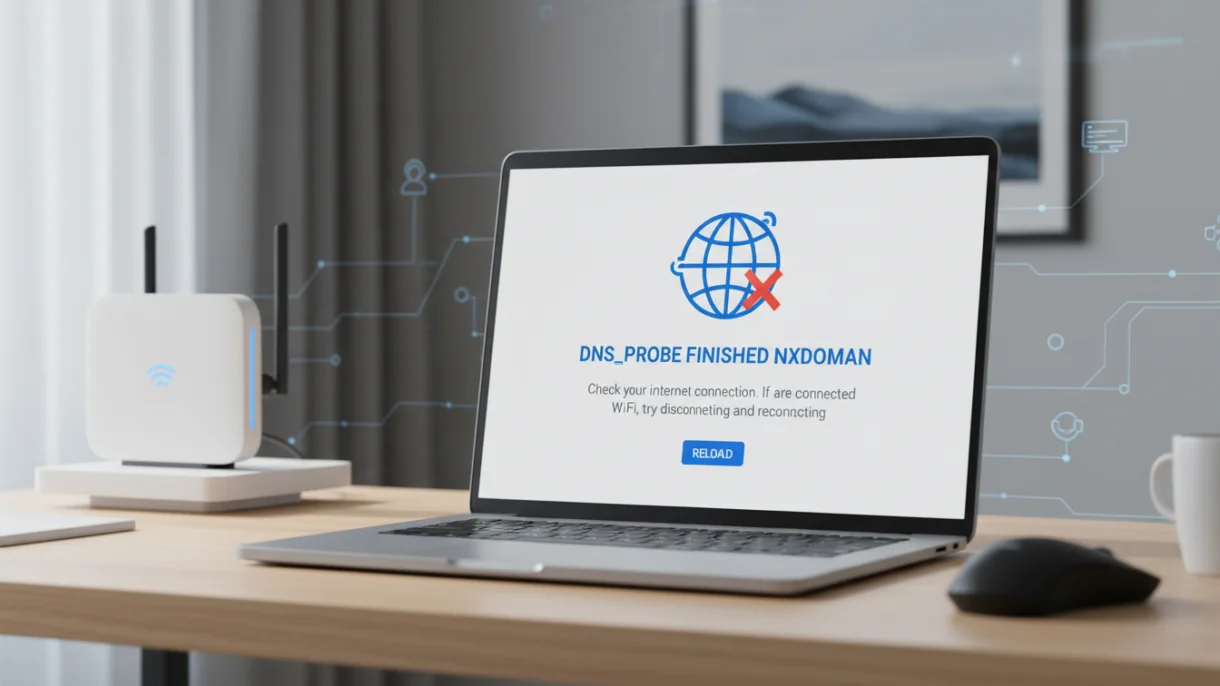
When you try to open a website in Chrome and suddenly see the message DNS_PROBE_FINISHED_NXDOMAIN, it can feel very confusing, honestly. While the message appears to have a highly technical name, but the meaning is actually simple. It usually means that Chrome cannot find the website’s address on the internet. In more basic terms, it can be understood as the browser is asking, “Where is this website?” but it is not getting a proper answer.
This can happen for many reasons. Sometimes you may have typed the website name incorrectly. Sometimes your internet connection may have a small issue. In other cases, Chrome may be using old or incorrect DNS information. In such situations, performing a chrome clear DNS cache process can often resolve the issue quickly. The good news is that you can fix this problem easily by following a few simple steps.
Let’s go through them one by one.
Step 1: Check the Website Address
Before trying anything complicated, look at the website address (URL) carefully. And make sure there are no spelling mistakes. Even a small typo can cause this error because Chrome cannot find a website that does not exist.
For example, if you type “gooogle.com” instead of “google.com,” you may see this error. So you should check the spelling first, because sometimes the solution is that simple.
Step 2: Restart Chrome and Your Device
Although it may sound basic, restarting often fixes many small problems.
If this does not help you fix the problem, you should close Chrome completely. Then open it again and try visiting the website. If the error is still there, restart your computer. You should also restart your router or modem. Unplug it from its power source; wait approximately 30 seconds, plug it back in and then turn it back on.
This works because sometimes your internet connection temporarily loses communication with the DNS server. Restarting refreshes the connection and clears small glitches.
Step 3: Clear Chrome Cache and Cookies
Chrome saves website information (including images, scripts, and login information) in what they call “cache” and “cookies.” This helps websites load faster. But if this stored data becomes old or corrupted, it can cause errors like DNS_PROBE_FINISHED_NXDOMAIN.
Here’s how to clear it:
- Open Chrome.
- Click the three dots in the top-right corner.
- Click Settings.
- Go to Privacy and security.
- Click Clear browsing data.
- Select Cookies and other site data and Cached images and files.
- Click Clear data.
After that, refresh the website.
This helps because Chrome will stop using old saved data and instead load fresh information.
Step 4: Turn On Secure DNS in Chrome
DNS is like the internet’s phonebook. It converts website names into IP addresses. If your DNS server is slow or not working properly, Chrome may not find the website.
You can change this inside Chrome:
- Open Chrome.
- Go to Settings.
- Click Privacy and security.
- Select Security.
- Scroll down to Use secure DNS.
- Turn it on.
- Choose With and select Google or another provider.
This can fix the issue because Chrome will use a more reliable DNS service instead of the default one from your internet provider.
Step 5: Clear Chrome’s Internal DNS Cache
Many people do not know that Chrome has its own DNS cache separate from your system. Even if your internet is fine, Chrome may still remember old DNS information.
To clear it:
- Type this in the address bar:
chrome://net-internals/#dns - Press Enter.
- Click Clear host cache.
Then restart Chrome and try again.
This step works because it removes stored DNS records that may be incorrect.
Step 6: Disable Extensions
While extensions greatly assist in many ways, they may interfere with your connection. VPNs, ad blockers, or security extensions could be blocking DNS requests.
To verify:
- Click on the three dots.
- Go to the Extensions icon → click Manage Extensions.
- Temporarily turn off all extensions.
- Refresh your website.
If the site works after disabling them, then one of the extensions is causing the issue. Turn them back on one by one to find which one is responsible.
Step 7: Try Incognito Mode
Incognito mode disables extensions (unless allowed) and ignores existing cookies.
To open it:
- Click the three dots.
- Select New Incognito Window.
If the website works in Incognito mode, then the problem is likely related to cache, cookies, or extensions.
Why This Error Happens
You might see DNS_PROBE_FINISHED_NXDOMAIN for several reasons:
- The website address was typed incorrectly.
- Your internet connection is unstable.
- The DNS server is not responding.
- Chrome has outdated DNS information.
- A browser extension is blocking the request.
- The website server is down.
Although the message looks serious, it usually does not mean something is badly broken. Most of the time, it is a temporary issue that can be fixed within minutes.
Final Thoughts
Receiving a DNS_PROBE_FINISHED_NXDOMAIN in Google Chrome can be extremely annoying when you need to access a website quickly. However, this error is usually quite easy to resolve since it is related to the DNS and/or stored data in the browser.
Try typing the URL again, restarting both the browser and the device. Then try clearing cache, enabling secure DNS as well as clearing your Chrome DNS Cache if necessary. If you still do not have access to the website, check your extensions or try Incognito mode.
Because this error is common, there is absolutely no need to panic. By following these easy steps, you can quickly get back to browsing without stress.
FAQs
1. What does DNS_PROBE_FINISHED_NXDOMAIN mean in Chrome?
It means Chrome cannot find the website you are trying to visit. Basically, the browser cannot connect to the site’s DNS server.
2. Can clearing cache fix DNS_PROBE_FINISHED_NXDOMAIN?
Yes, clearing cache/cookies can help if the problem is being caused by old data. It forces Chrome to load fresh website information.
3. Is DNS_PROBE_FINISHED_NXDOMAIN caused by internet problems?
Yes, it can happen if your internet connection is unstable. Restarting your router often fixes small connection issues.
4. Will changing DNS settings fix this error in Chrome?
Yes, switching to a secure DNS like Google DNS can solve the problem. It helps Chrome connect to a more reliable DNS server.

PM Networking is an emerging leader in the ed-tech space, founded by Praphul Mishra in 2020 with a vision to democratize tech education. The journey of PM Networking began as a YouTube channel with the sole purpose of sharing valuable knowledge in the fields of Networking, Cyber Security, and Cloud Computing. What started as a humble effort to educate has rapidly evolved into a comprehensive online learning platform that caters to the growing demand for specialized IT skills. PM Networking stands out in the crowded ed-tech industry by providing affordable, world-class training tailored to the needs of aspiring IT professionals. The platform is dedicated to equipping learners with the skills and knowledge required to excel in the highly competitive tech industry. Whether it’s Networking fundamentals, advanced Cyber Security protocols, or mastering the complexities of Cloud Computing, PM Networking offers a range of courses designed to cater to different levels of expertise.
0 Comments