





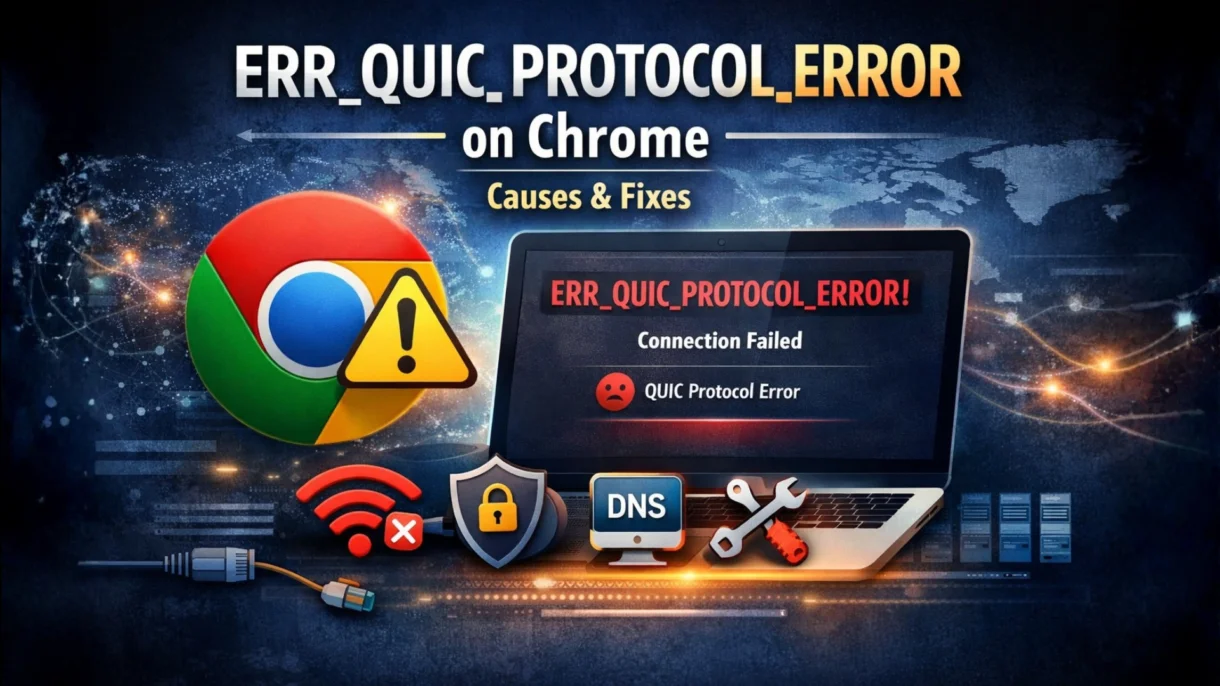
Have you ever tried opening a website in Chrome, only to see ERR_QUIC_PROTOCOL_ERROR? It’s frustrating because sometimes some sites load fine, while others don’t. You may notice the same website works on mobile data but fails on Wi-Fi, or it opens in Incognito but not normal mode.
It can be confusing, but don’t be concerned. This type of error is typically associated to Chrome’s QUIC protocol. Read on to learn what the error means, what QUIC is, why it might fail.
If you’re interested in understanding how modern networking protocols work in real environments, you can explore our networking courses online.
What is ERR_QUIC_PROTOCOL_ERROR?
In simple terms, ERR_QUIC_PROTOCOL_ERROR happens when Chrome tries to connect using QUIC, but the connection fails. The page may not load or keeps retrying, and the error can appear only on certain networks.
You might notice that other browsers like Firefox or Edge work fine, which is a clue that Chrome is specifically trying QUIC.
It usually happens in the following situations:
- Specific websites (often using HTTP/3)
- Corporate, school, or public Wi-Fi networks
- VPN or proxy connections
What is the QUIC Protocol?
QUIC is a modern protocol designed to make web connections faster and more reliable. It’s used in HTTP/3 and helps Chrome reduce loading times as well as latency.
Chrome prefers QUIC because it sets up connections more quickly and handles network delays better than older protocols.
However, QUIC uses UDP traffic (usually UDP 443), which some networks or security tools block. And when that happens, Chrome can’t complete the connection and that leads to ERR_QUIC_PROTOCOL_ERROR.
Common Causes of ERR_QUIC_PROTOCOL_ERROR
Here are the most common reasons you might see ERR_QUIC_PROTOCOL_ERROR in Chrome:
- Some office, school, or public Wi-Fi networks block the UDP traffic QUIC uses.
- VPNs or proxies can change routing or inspect traffic, which may break QUIC connections.
- Security software with a “web shield” can also stop QUIC traffic from working properly.
- Ad blockers, privacy as well as security extensions can modify requests and block QUIC.
- Old/broken site data can prevent a successful connection.
- Running an old version or unstable flags can cause errors.
- Rarely, the website itself may misconfigure HTTP/3 or QUIC.
Step-by-Step Troubleshooting
Try these steps one by one and test the website after each to see if the error is resolved.
Quick Checks (1 Minute)
You can start by using Incognito mode, which quickly rules out problems caused by extensions. The next step is to restart both your router and Chrome, as simple restarts often fix connection issues. Finally, try accessing the site on a different network, such as a mobile hotspot, to see if your Wi-Fi is causing the problem.
Disable Experimental QUIC Protocol
Go to chrome://flags/#enable-quic, set Experimental QUIC protocol to Disabled, and relaunch Chrome. This helps because Chrome will fall back to HTTP/2 over TCP, bypassing any issues caused by QUIC traffic.
Clear Cache and Cookies
Start by clearing data for the specific website giving the error to avoid logging out of other sites. And if needed, you can also clear broader browsing data to remove stale or corrupted files that might be blocking connections.
Turn Off VPN/Proxy
Temporarily disable your VPN and test the site again. You should also check your system’s proxy settings, especially if you are on a corporate or school network because these can interfere with QUIC connections.
Disable Extensions
Disable all Chrome extensions, then test the site. If it works, enable the extensions one by one to find the culprit. Common offenders include ad blockers, privacy tools, and antivirus extensions.
Update Chrome and Reset Flags
Make sure Chrome is updated to the latest version. Then reset all experimental flags by going to chrome://flags, selecting Reset all to default, and relaunching the browser. This removes any unstable settings that may cause errors.
DNS and Network Fixes
You can flush your DNS on your computer to remove old records. Switching to a reliable DNS resolver, such as Google DNS or Cloudflare, may also help. If none of these steps work, performing a full network reset can fix deeper connection issues.
If It Only Happens on Office/School Wi-Fi
This usually happens because the network blocks or inspects UDP traffic, which breaks QUIC.
Practical workarounds:
- Keep QUIC disabled in Chrome
- Test without VPN or proxy
- Try a mobile hotspot
- If it’s a managed network, ask IT to review UDP 443 / HTTP/3 policies
Conclusion
ERR_QUIC_PROTOCOL_ERROR often occurs when there are either QUIC or network compatibility issues. The fastest fix is disabling the QUIC flag in Chrome. And if this doesn’t solve the problem, check VPN/proxy, extensions, cache, and DNS.
If, after all this, you’re still stuck comment with the OS you are using, network type, and whether a hotspot works; these details help provide more tailored solutions.
FAQs
Is it safe to disable QUIC?
Yes, chrome will simply use HTTP/2 over TCP instead.
Why does it happen only in Chrome?
Chrome uses QUIC/HTTP3 more aggressively than other browsers.
Will it affect other Chromium browsers?
Yes. Edge or Brave can also show similar behavior.
How do I re-enable QUIC?
Set the flag back to Default in chrome://flags.
How do I know if it’s my network or the website?
Test the site on a different network or device. If it works elsewhere, it’s likely your network.

PM Networking is an emerging leader in the ed-tech space, founded by Praphul Mishra in 2020 with a vision to democratize tech education. The journey of PM Networking began as a YouTube channel with the sole purpose of sharing valuable knowledge in the fields of Networking, Cyber Security, and Cloud Computing. What started as a humble effort to educate has rapidly evolved into a comprehensive online learning platform that caters to the growing demand for specialized IT skills. PM Networking stands out in the crowded ed-tech industry by providing affordable, world-class training tailored to the needs of aspiring IT professionals. The platform is dedicated to equipping learners with the skills and knowledge required to excel in the highly competitive tech industry. Whether it’s Networking fundamentals, advanced Cyber Security protocols, or mastering the complexities of Cloud Computing, PM Networking offers a range of courses designed to cater to different levels of expertise.
0 Comments